
How to reset your password
This page includes instructions for changing your password, and for requesting a new password if you are unable to log in to your account.
Changing your Password
If you are able to log in to your account, and want to update your password, follow the steps below:
1. Log in
Log in to your SREC Delaware Account.
2. Navigate to “Change Password”
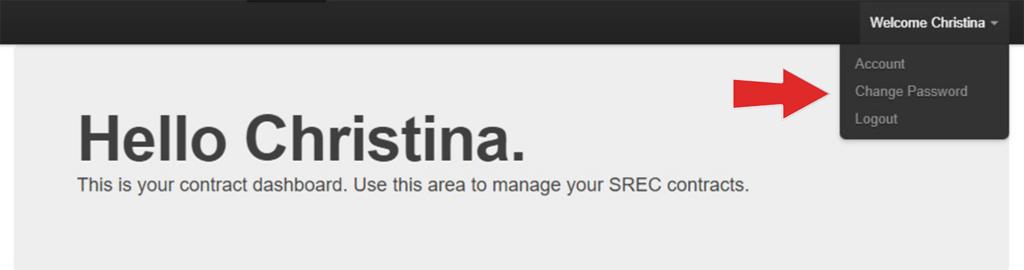
Click the “Welcome” dropdown at the top right of your screen. Select “Change Password” from the dropdown. This will bring you to a page to update your password.

3. Enter your new password
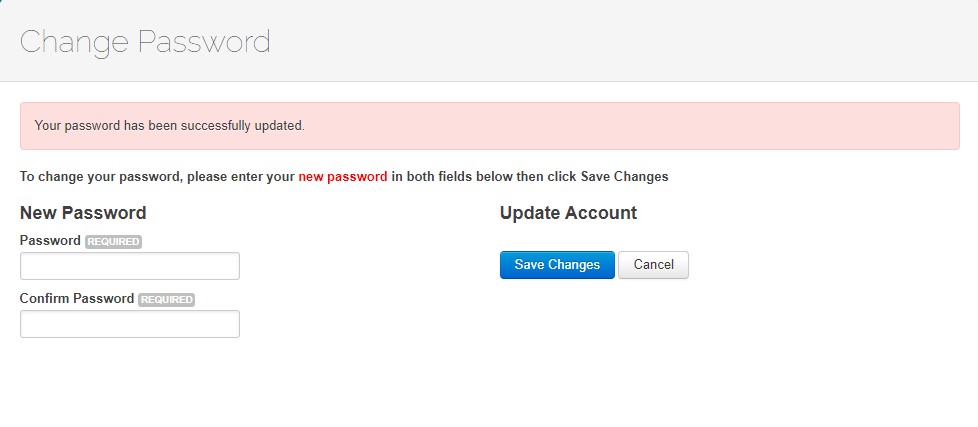
Enter your new preferred password in both fields and click “Save Changes.” The page will refresh, and if the password updated successfully, the page will display “Your password has been successfully updated.” You can now log out or return to your contract page.
Requesting a new password
If you are unable to log in to your account, please follow the steps below to request a new password.
1. Navigate to the log in page
Go to the SREC Delaware log in page.
2. Select “Forgot Password”
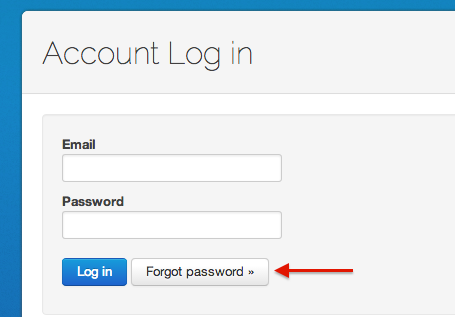
On the Account Log in page, click on the “Forgot Password” button.
3. Enter your email address
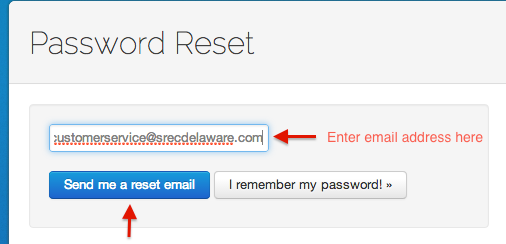
On the next page, enter the email address that is linked to your account and then click “Send me a reset email.”
4. Activate your new password
Go to your email inbox, and find the password reset email. Follow the link in that email to activate the new password.
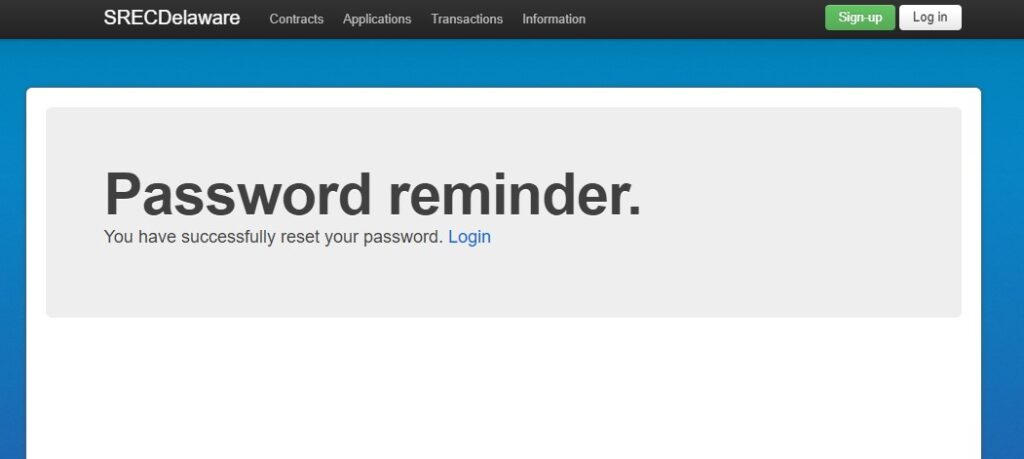
5. Log in
Go back to the SREC Delaware log in page, and log in with your email and the new password provided to you in the email.
6. Update to your preferred password (optional)
If you would like to update your password from the password that was provided to you via email, please see the instructions at the top of this page.
If you are experiencing any issues resetting your password, please contact the SREC Delaware team at [email protected].